Integrations
Connect external LLM, STT, and TTS providers to power your agent's language understanding, speech recognition, and voice synthesis.
Integrations are the outside services you connect to your agent. They power its core abilities: language understanding (LLM), speech recognition (STT), and voice synthesis (TTS).
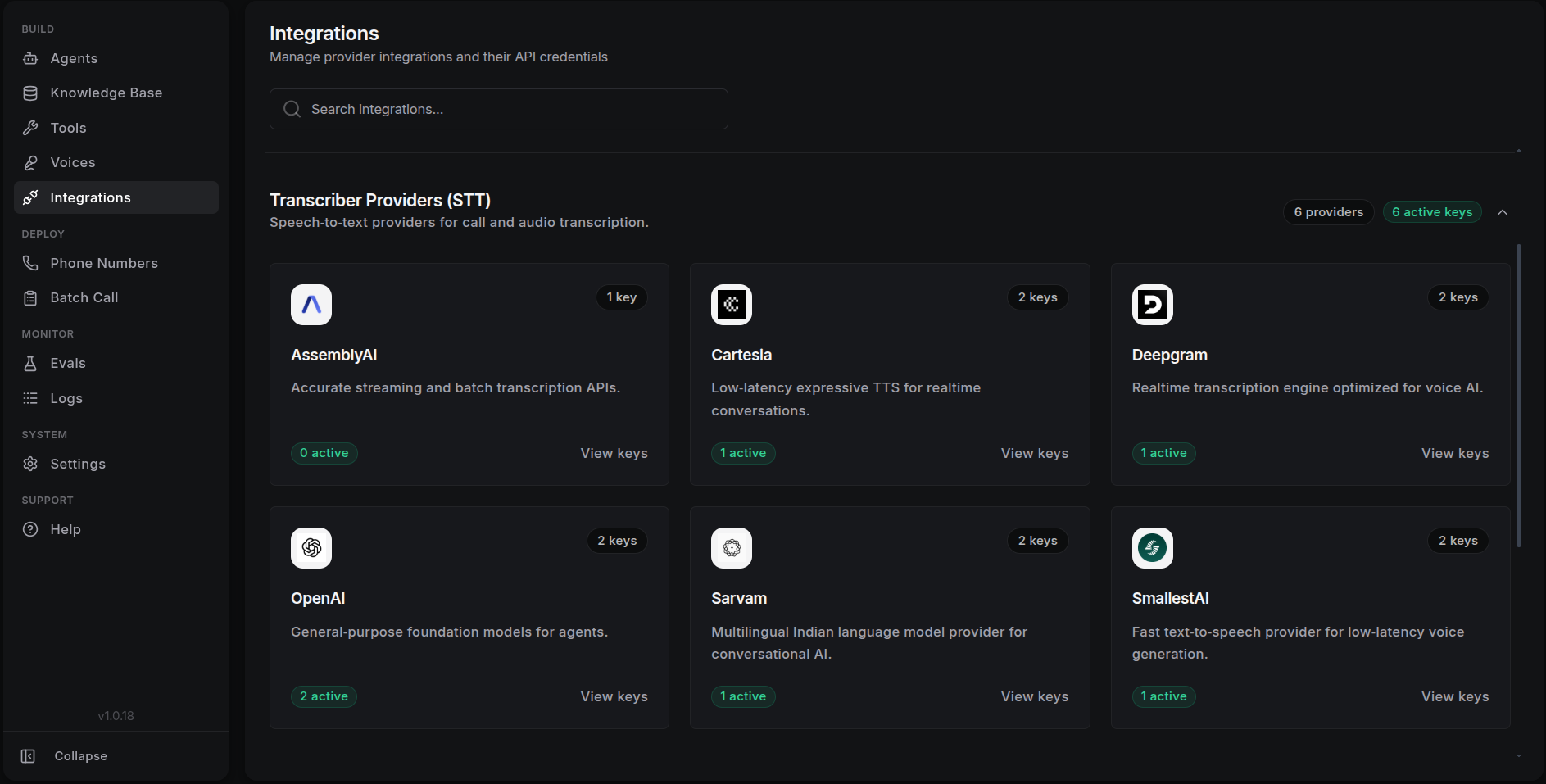
Adding an Integration
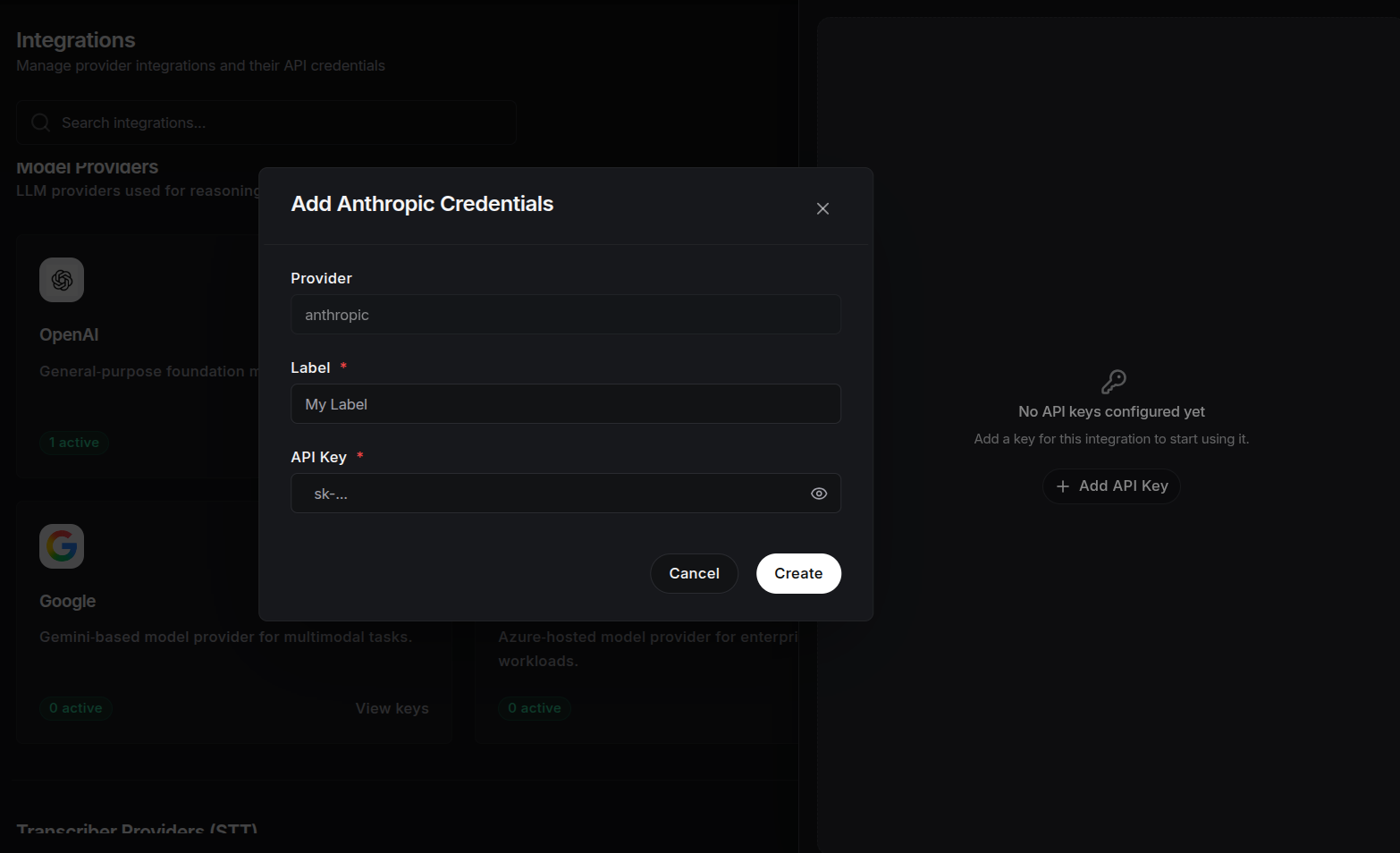
To connect a new service, go to the Integrations dashboard and fill in the fields below:
1. Label
Give this integration a clear, unique name, such as "Main OpenAI Account" or "Production Cartesia Key". A good name helps you tell apart multiple keys or accounts from the same provider.
2. Provider Type
Choose the kind of service you are adding. Each type has a specific job:
- LLM (Large Language Model): Powers the agent's intelligence and conversation.
- STT (Speech-to-Text): Turns the caller's speech into text.
- TTS (Text-to-Speech): Turns the agent's text replies into spoken audio.
3. Provider
A provider is the company that owns the AI model or speech service. Choose the provider you want to use. Examples include:
- LLM: OpenAI, Anthropic, Groq, or Google Vertex AI.
- STT: Deepgram or Gladia.
- TTS: Cartesia, ElevenLabs, or Play.ht.
4. API Key
Paste the API key from the provider's dashboard. An API key is a password that lets ScaleAI use the service on your behalf. Without it, ScaleAI cannot reach the provider's models.
Google Vertex AI uses a Google Cloud service account instead of an API key:
- Service Account JSON: the full JSON key of a service account that can call Vertex AI.
- Google Cloud Project ID: the project that owns the Vertex AI endpoint.
- Location: the region your requests run in. Pick it from the list, or leave it as
global.
Management & Security
- Centralized keys: Once a provider is created, its API key can be reused across multiple agents. That makes it easy to rotate keys or update accounts in one place.
- Secure storage: API keys are encrypted and stored securely. Never share your keys in public logs or transcripts.
- Activate your key: After adding a key, select it in your agent's LLM or Audio & Voice settings. The integration only becomes active once you choose it there.