Phone Numbers
Provision and manage phone numbers that connect your voice agents to the phone network via SIP.
Phone numbers are the entry point for your voice agents. They connect ScaleAI to the phone network (PSTN) using SIP. SIP is the standard that carries phone calls over the internet.
There are three kinds of phone numbers:
- SIP numbers: You add these yourself with credentials from your phone company.
- Telephony numbers: These come from a telephony provider you connect in Integrations. They appear here automatically once you have set up the provider.
- Bought numbers: Numbers you buy directly from ScaleAI with Buy Number. They are paid for from your wallet; see Buying a Phone Number.
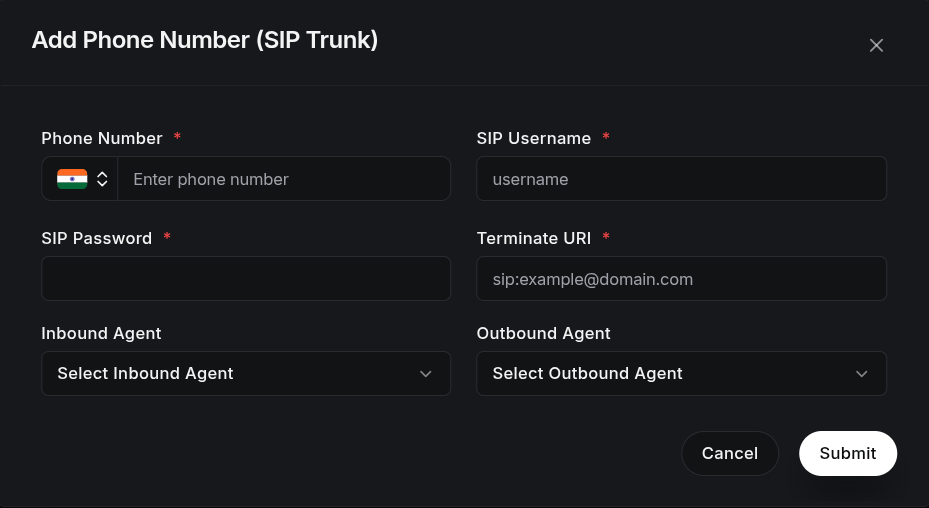
Adding a Phone Number
To set up a new SIP number in ScaleAI, fill in the details below. All fields are required:
1. Basic Information
- Phone Number: Pick your country from the flag dropdown and enter the full phone number. This acts as the unique identifier for the connection.
2. SIP Configuration
To connect securely with your phone company, provide the following details:
- SIP Username: The username your carrier gives you for authentication.
- SIP Password: The secure password for your SIP account.
- Terminate URI: The SIP address where calls should be directed (for example,
sip:example@domain.com).
3. Agent Assignment
Tell the system which agents should use this number. A number can handle both directions at once:
- Inbound Agent: Pick the agent that answers calls when customers ring this number.
- Outbound Agent: Pick the agent that makes calls from this number (for example, for Campaigns).
Note: You must assign at least one agent (inbound, outbound, or both). You also need at least one active, published agent before you can complete this step.
Buying a Phone Number
Click Buy Number to rent a number from Twilio, Plivo or Vobiz without connecting your own account.
- Pick the provider, country and number type, and optionally an area code. Some countries need an approved verification from the Compliance page before you can search.
- Search, then choose a number. Each number shows its monthly price, which comes live from the provider.
- Review the summary before you confirm:
- Charged today: the first month, plus any one-off setup fee the provider charges.
- Every month after: the monthly rent.
- Wallet balance: your balance before and after the purchase. If your wallet is short, top it up first.
If the provider's price has gone up since you searched, the purchase stops before anything is charged; search again to see the new price.
Monthly renewal
A bought number renews every month at the price you bought it for, charged from your wallet.
- If the wallet can't cover the rent, the number is Suspended: it stops taking calls, its agents are removed and it can't be switched back on.
- Topping up the wallet restores a suspended number automatically.
- A number that stays suspended for 30 days is released.
Managing Phone Numbers
The list shows all your numbers with their current settings:
| Column | Description |
|---|---|
| Phone Number | The number itself (sortable). |
| Agent | The agent shown for the number. |
| Direction | Whether the number receives calls (Inbound), makes calls (Outbound), or does both. |
| Type | SIP (added by you) or TELEPHONY (from a provider). |
| Provider | The phone company behind the number (shown for telephony numbers). |
| Status | Whether the number is Active (can take calls) or Inactive. Bought numbers can also show Suspended (rent unpaid) or Released (returned to the provider). |
| Last Updated | When the number was last changed (sortable). |
Filter the list by search, Agent, Provider, Type, Direction, and use Show archived to bring deactivated numbers back.
Actions
- Edit: Update the number's agent assignments or SIP credentials.
- Activate / Deactivate: Turn the number on or off. Deactivating removes it from the active list; reactivate it later from the archived view.
- Release (bought numbers only): Give the number back to the provider. Calls to it stop working and it is no longer renewed or charged. Remove it from its agents first. Released numbers stay in the list for your records but can't be edited or switched on.
- Add Webhook: Create a webhook scoped to this phone number, so your own systems get notified about its calls. A webhook is a way for ScaleAI to notify your own systems when something happens.